
CTS Multi Sensor Dashboard
The CTS Multi Sensor Dashboard gives facility and property management one place to see which properties need attention, understand how residents are using their stoves, and respond when something is wrong. Everything you need to catch a problem early, and act on it.
The sensor behind the dashboard
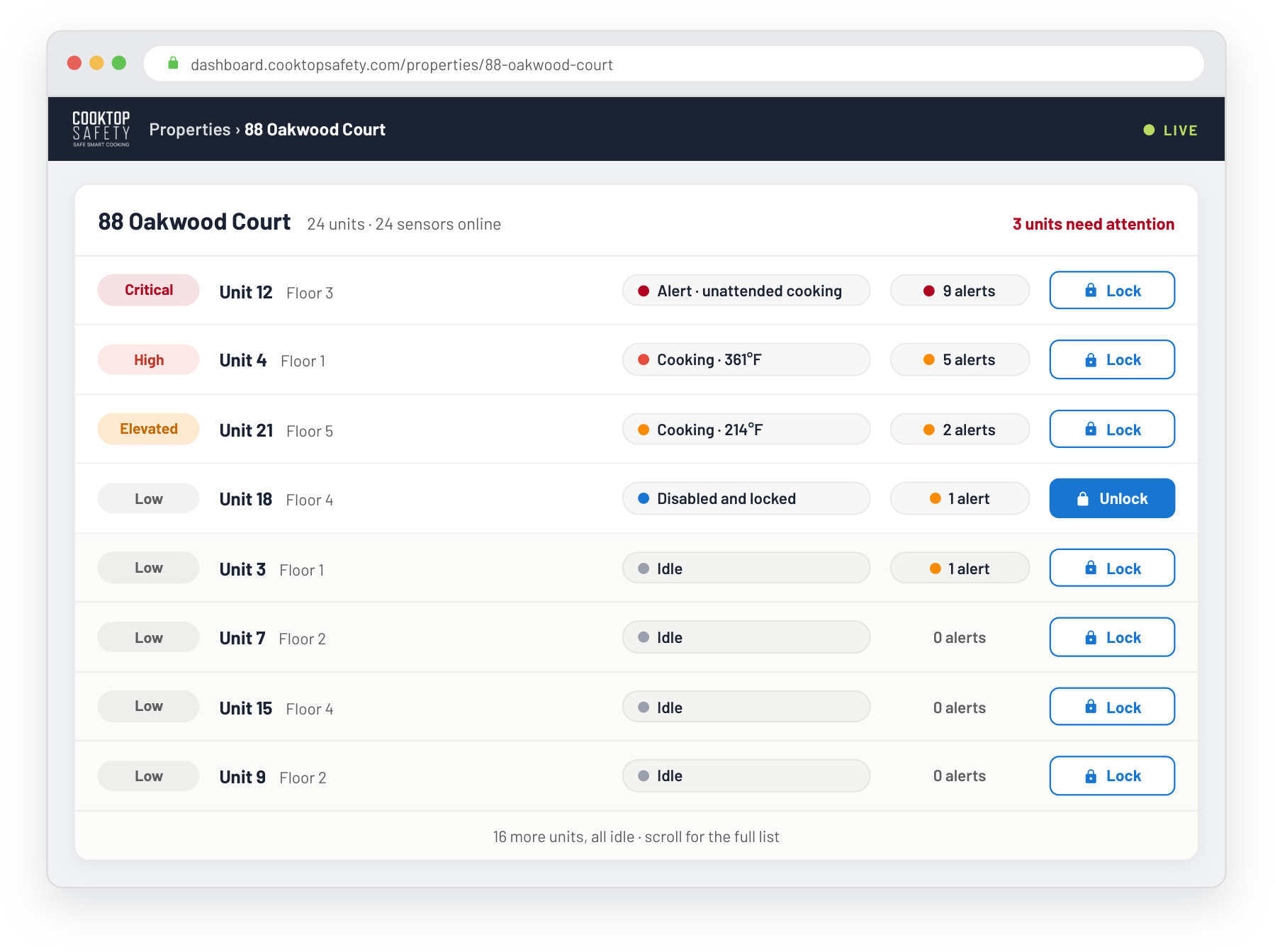
In every unit, a CTS Smart Stove Sensor mounts above the stove and uses thermal sensing, not a camera, to catch unsafe cooking: an unattended burner, temperatures climbing toward a fire, or immediate danger. It alerts the resident with voice and light, and with the CTS Stove Power Cutoff it shuts the stove off on its own before a fire can start. The Dashboard is how your team sees and manages every one of those sensors at once.
Dashboard home
Your whole portfolio in five numbers
The home screen opens with the live counts that matter most: properties, sensors, sensors online, alerts, and safety shut-offs. A sensor going offline usually means the Wi-Fi has dropped or the unit has been moved. Alerts cover dangerous cooking events. Safety shut-offs count the times the CTS Stove Power Cutoff shut off power to a stove to stop a dangerous event.
How to use it
A five minute morning routine
Three steps turn checking on dozens of properties into a five minute morning routine.
Spot
Open the home screen. The Needs Attention list shows which properties, and the tenants inside them, are showing risk right now.
Diagnose
Drill into a flagged property or sensor to see what is going on: alerts, safety shut-offs, cooking patterns, presence, and trends.
Plan
Decide the next step with the full picture: brief care staff, contact the family or tenant, adjust the schedule, or book a visit.
Patterns over time
The history behind the numbers
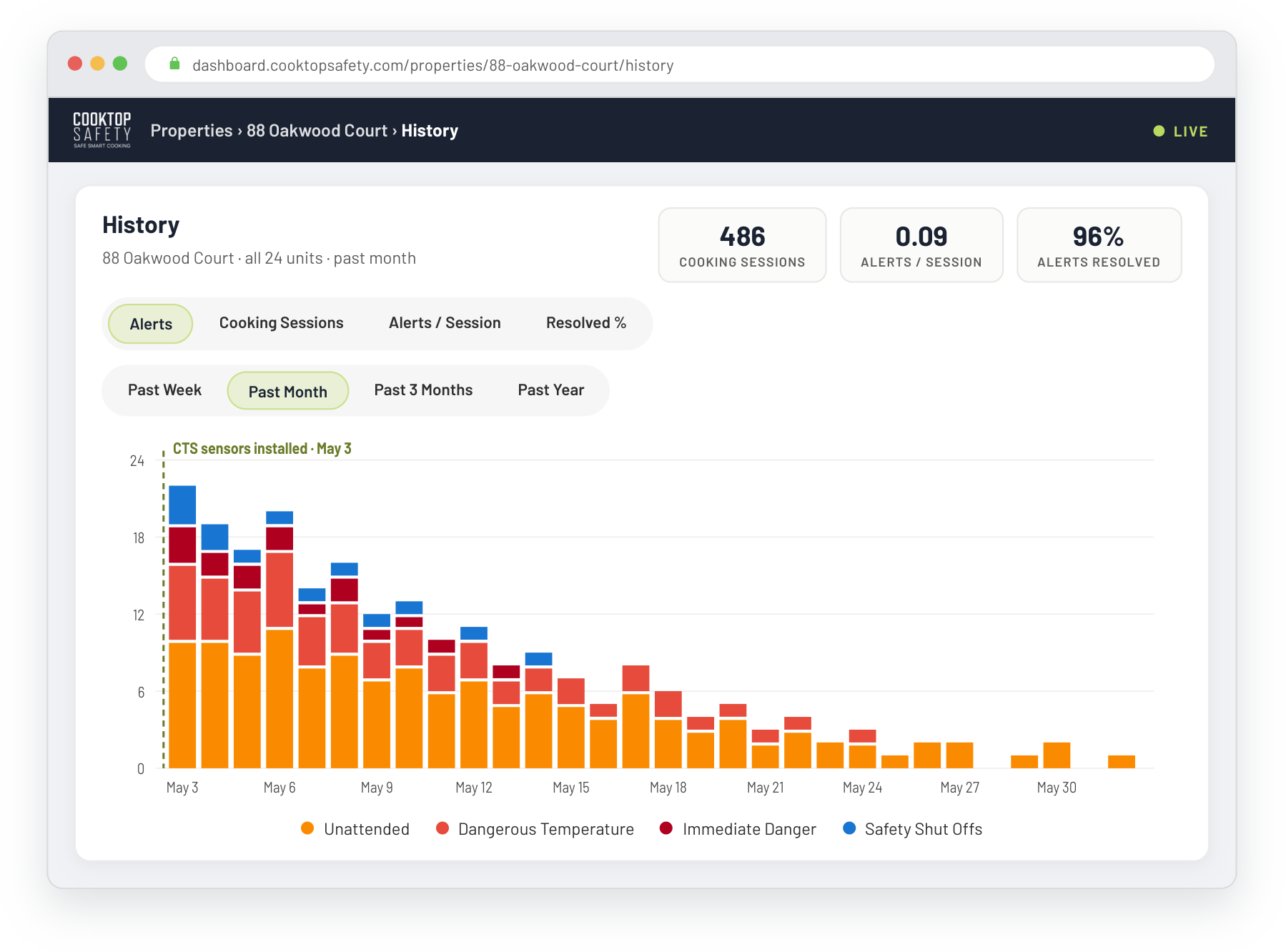
Open the History view for any sensor and see its alerts over time, split out by what caused them. Switch between total alerts, cooking sessions, alerts per session, or how many were resolved, and set the range anywhere from the past week to all time.
Built for your role
One dashboard, two jobs
The dashboard brings the everyday signs that a resident is doing okay onto one screen, so a change in someone's routine stands out early, while there is still time to check in.
The dashboard puts building-wide controls one click away, so you can manage safety across every unit at once.
Reporting
Know which units need attention
Detailed reporting on cooking activity, unsafe events, and intervention history across your portfolio, so you can see which properties and units need attention, catch changes in routine early, and act before a small issue becomes a bigger one.
See it with your own properties
A 15 minute walkthrough with our team, using scenarios from your buildings. Pricing is customized to the number of units and sensors you are deploying.
Book a demo